 Emailing Customers & Vendors
| Document Version | v.2 |
|---|---|
| Document Last Updated | 10/6/2023 |
| Software Version Documented | v.9.9.2 |
Overview
This document will discuss the proper way to set up your Customer Accounts and Vendors so that your contacts can receive emails of the appropriate transactional documents, i.e., invoices, PO’s, credits, etc.
Creating Contacts
To begin, we need to create contacts within your Accounts and Vendors. The below section will cover how to set these up properly. Since it is the exact process, we will use creating an Account contact, for example.
-
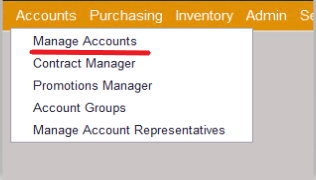
Go to Accounts > Manage Accounts or Manage Vendors.
-
Search for or create a new account.
-
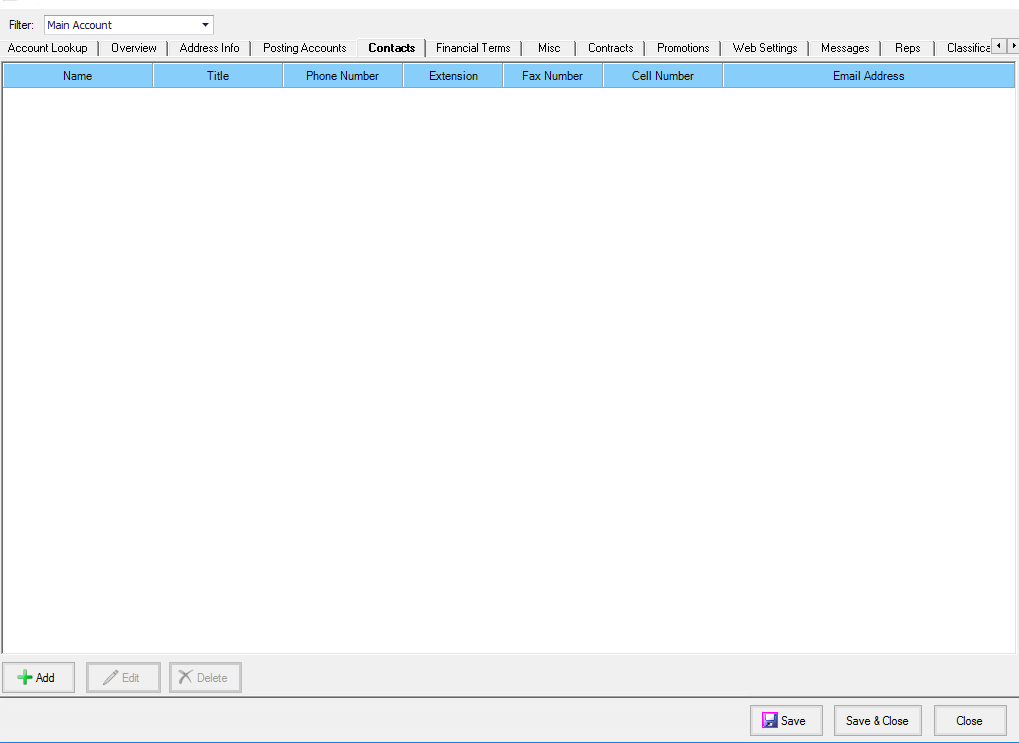
Next, select the Contacts tab.
-
Select + Add to create a contact for this account. NOTE: You can have multiple contacts for a single Account.
-
Enter the Contact’s information, since this article is about emailing documents, it is pertinent to have the correct email address. Once completed, hit Save.

-
Continue this process until all contacts have been added to this account.
Delivery Methods
Now that your contacts have been added to your Accounts or Vendors, we need to configure the preferred delivery methods. Delivery Methods are how you want your contacts to receive certain transactional documents, i.e., Invoice, PO’s, Credits, etc. via Print, FAX, or email.
-
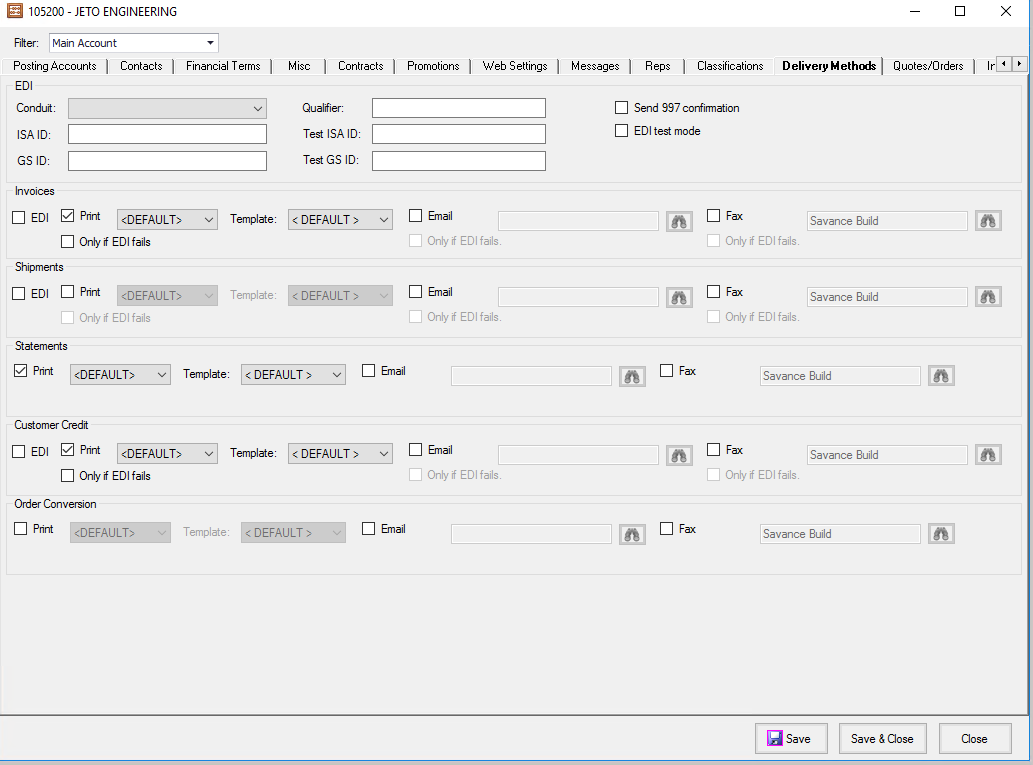
While in Manage Accounts, or Vendors go to the Delivery Methods tab.
-
Each section refers to a specific document type, and these will vary between Accounts and Vendors.
-
Accounts
-
Invoices
-
Shipments
-
Statements
-
Customer Credits
-
Order Conversion
-
-
Vendors
-
Purchase Orders
-
Remittance Advice
-
Rebate Claims
-
Order Conversion
-
-
-
Next for each document type choose if those contacts prefer, email, print, or fax. NOTE: You don’t have to set each document type, i.e. Order Conversion. To set the preference check the delivery method, in the below example, Invoices are set to “Print,” meaning these will print so they can be mailed to the customer.

-
To set the preference to email, uncheck the ‘Print’ box and check the email box. Once you check the email address field will open.

-
Select the search button to view the contacts list

-
Now you can choose multiple people to receive the email, or choose a different contact for each document type. Highlight the contact and use the down and up arrows to select the contacts.

-
Once you’ve selected the contacts, you will now see the names appear in the email field.

-
Repeat the process for each document type you want to configure.

-
Once completed Save, & Close.
Delivery Methods in Action
Now that you have properly set up your delivery methods, this next section will show you how it works within Savance Enterprise. Also how to resend these documents in case they were not received, or have been requested to be resent.
When an order is ready to be invoiced, you will notice under the Delivery Methods in the shipper the Email box will be checked.

If you use the Send-Document queue, once you’ve invoiced the order the document will be placed in this queue.
To verify this go to the Dispatch tab to view the document status.

You will also notice the email addresses that you previously added under the To Address column.
In the Send Documents screen, under the Accounting Manager you can now see the queued document, and the Method is set to Email. Once you select and process the documents the invoice will be sent via email.

If a customer or vendor requested a document to be resent there are several options you have. If you have an invoice or PO # you can go to Documents > Dispatch Viewer

Using the filters, you can search by Delivery Method/Type. Document, Date, Invoice, or PO numbers. Once you locate the document you want to resend, right-click, and select Resend Email, and the document will be resent via email.
